Request Template Settings
Previously, the Procore Customs Solutions team was required to add signing locations to the main Procore contracts. This paid option is still available and does give the best control over the look-and-feel of your contracts. Contact Shake IT if you are considering this option.
Request Templates are an alternative to text-tags, and can be used to signify the signing locations on the main Procore contracts. This method relies on creating Dropbox Sign Templates for each of your existing contracts. The only downside is that if the length of your contracts vary, you may have to slightly modify the signing location during the request.
As of now, the following steps must be performed by a team admin, so all team members share the same templates. User-specific templates will be added at a later date.
Create Request Templates
To create a request template:
- In Procore, browse to a contract, such as a Commitment Subcontract
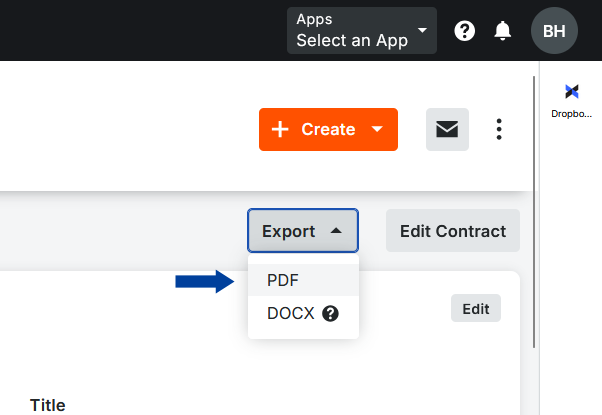
- Press Export > PDF to download the file
- Login to Dropbox Sign and browse to Templates
- Press the "Create template" button
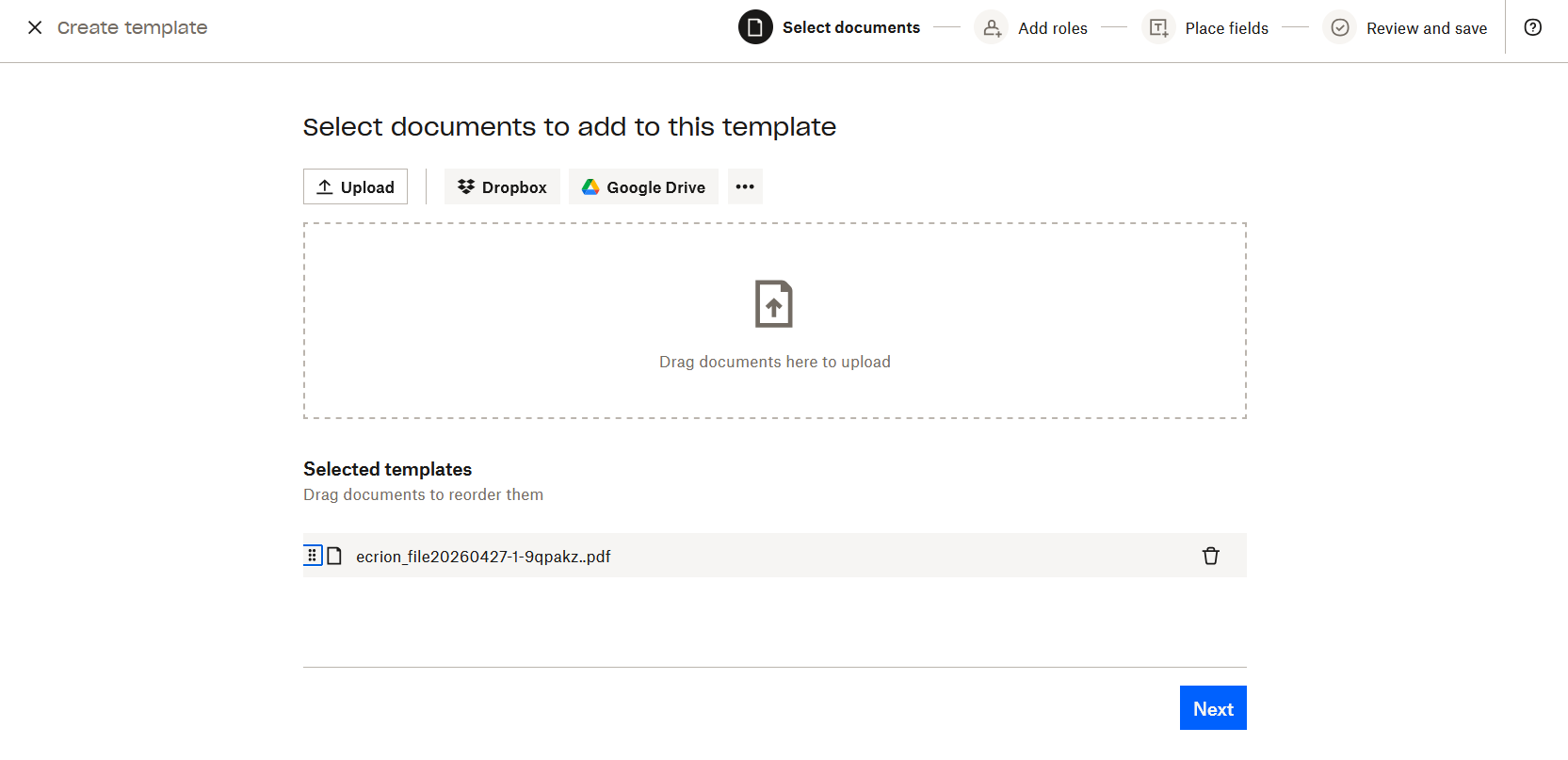
- Upload the document from step 2 and press the "Next" button
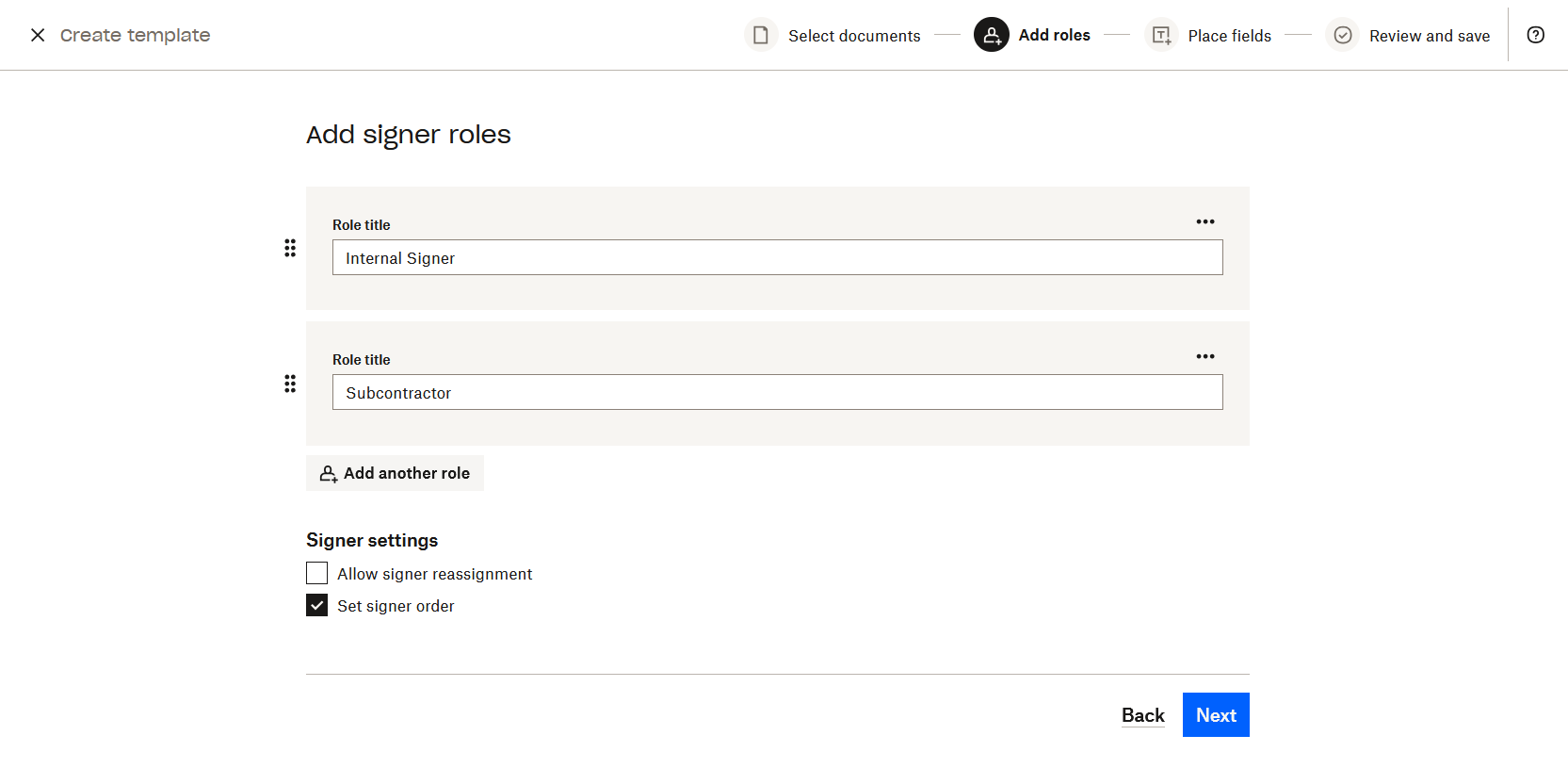
- Add the signer roles and press the "Next" button
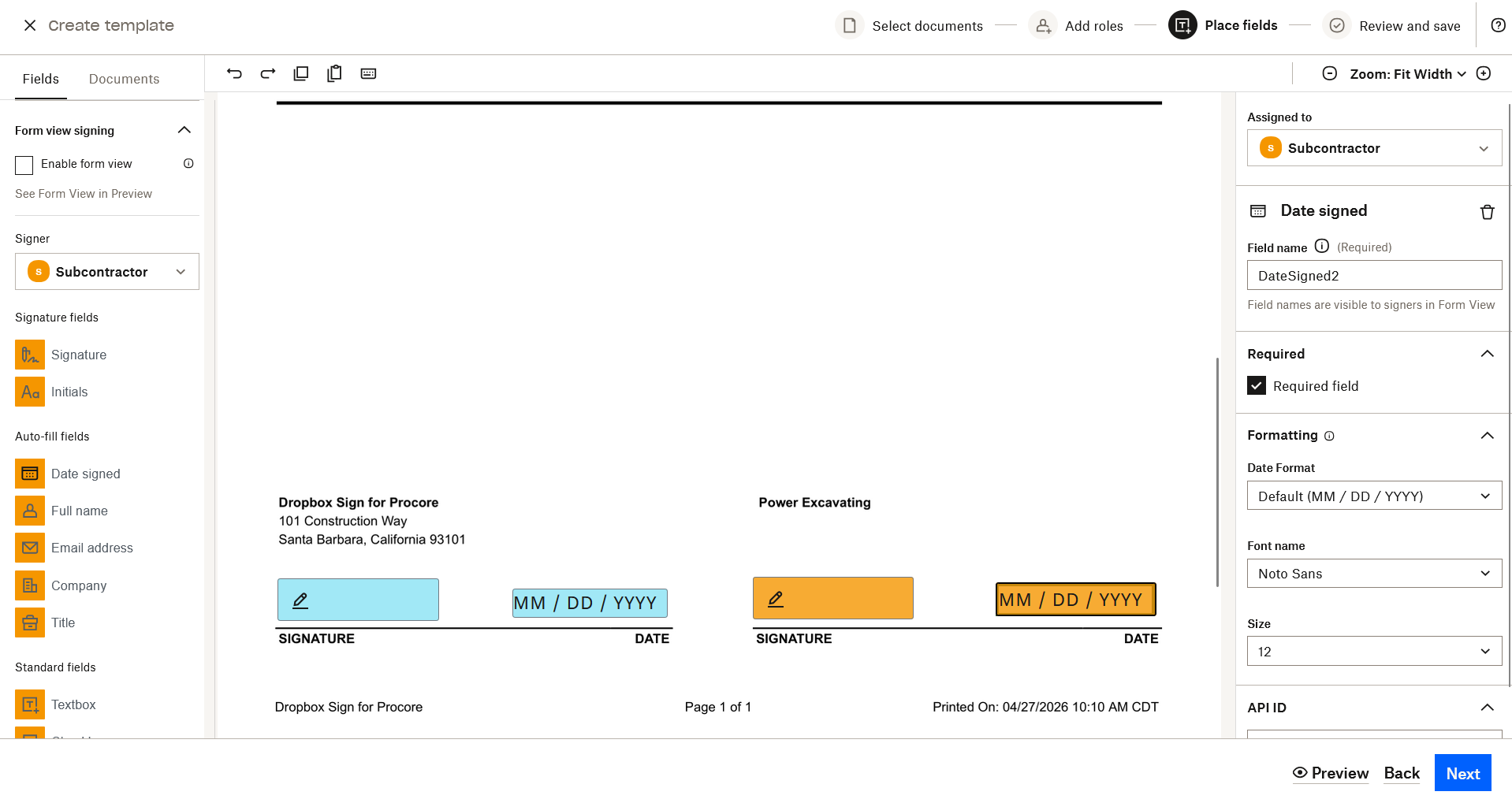
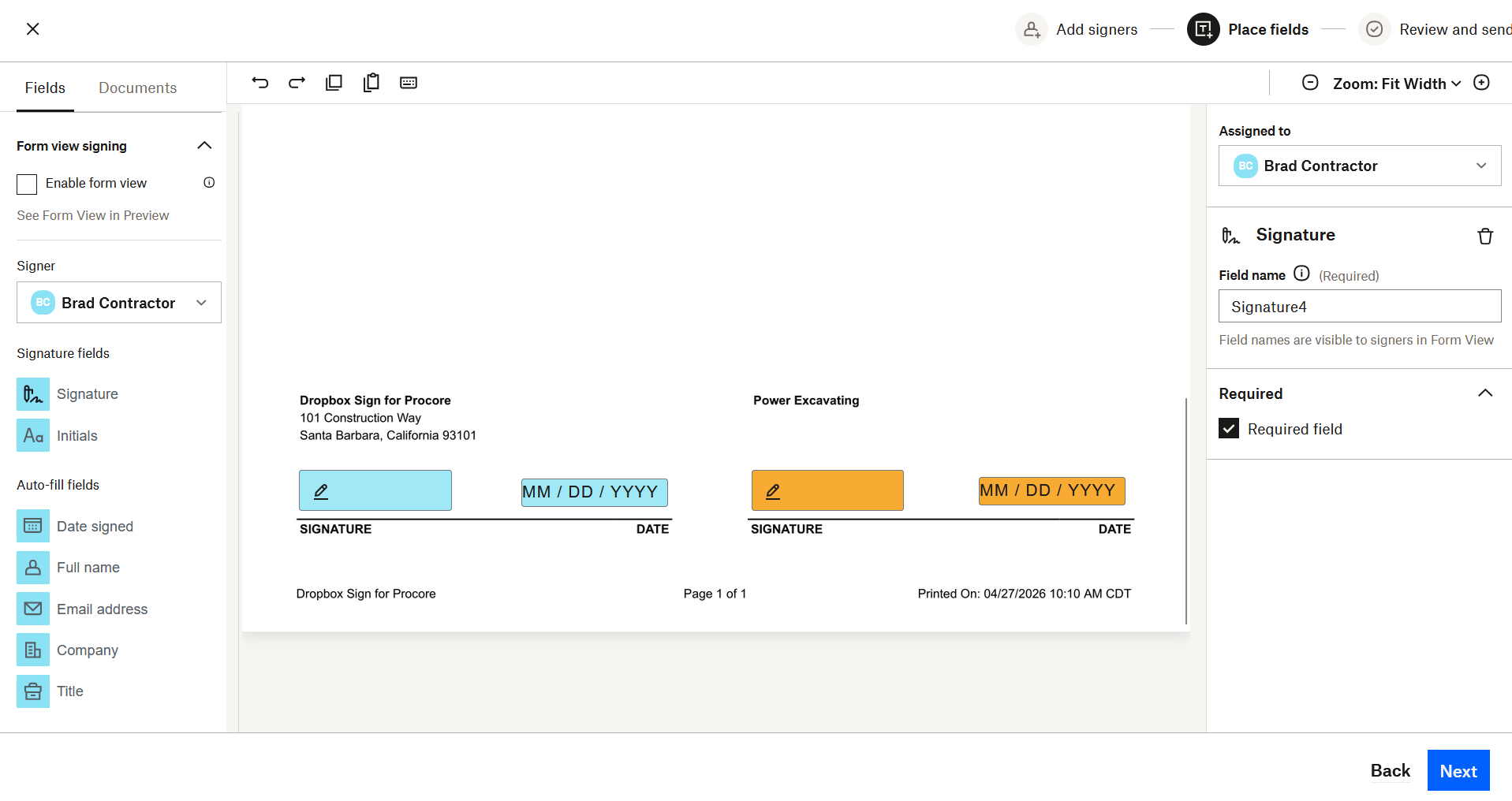
- Drag-and-drop the signing locations and press the "Next" button
- Provide the template and name and press the "Save template" button
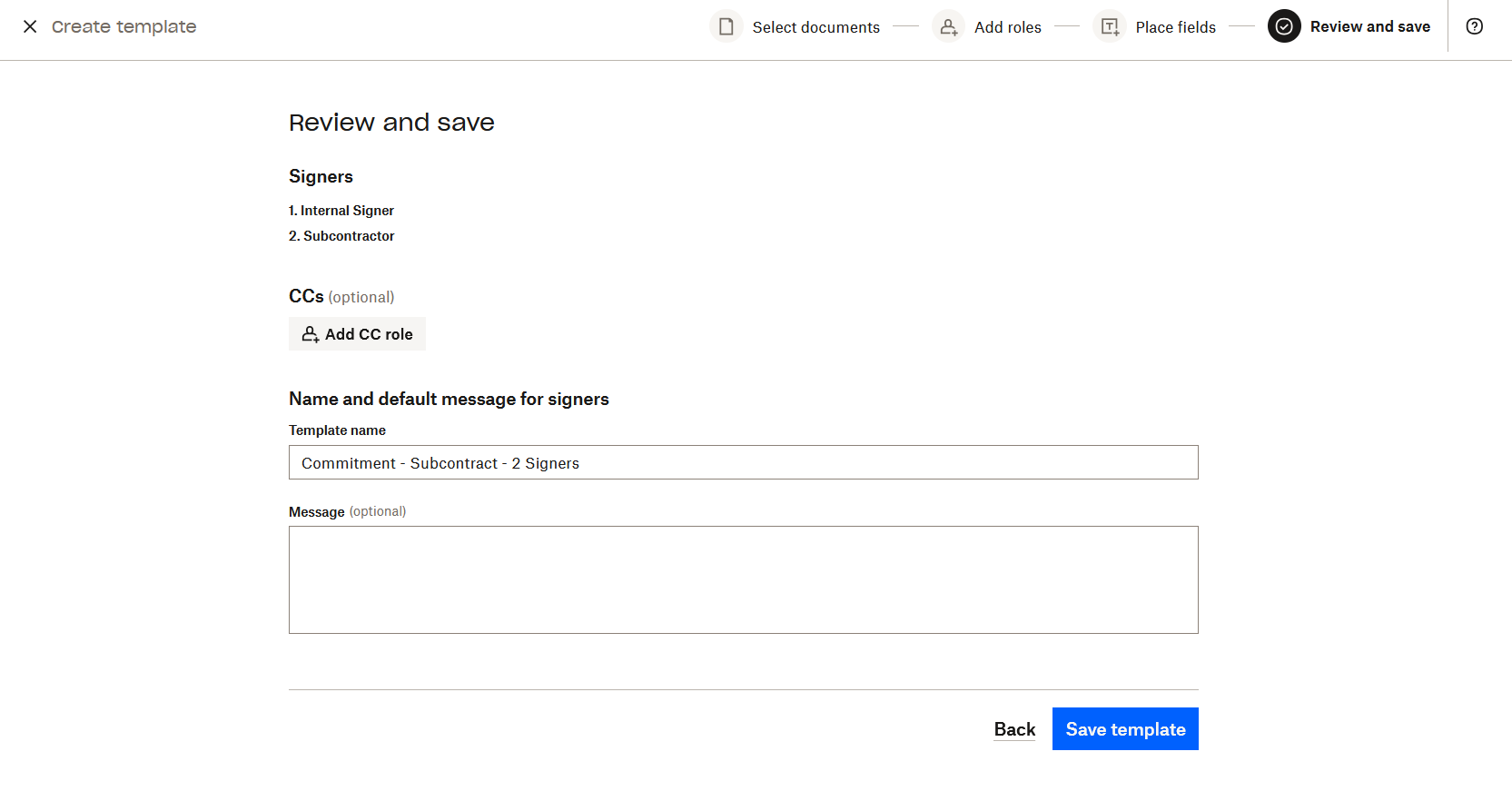
- Repeat the above steps for each contract type.
Enable Request Templates
In Procore, ensure the "Enable Dropbox Sign Request Templates" setting is enabled:
- Press the
 icon in the top right and select "Configure Side-panel"
 - Expand "Request Template Settings"
- When enabled, a Request templates dropdown will show above the "Add Signers" section
- Request Templates can automatically be defaulted for certain contract types
- The signers and signer roles are populated from the template
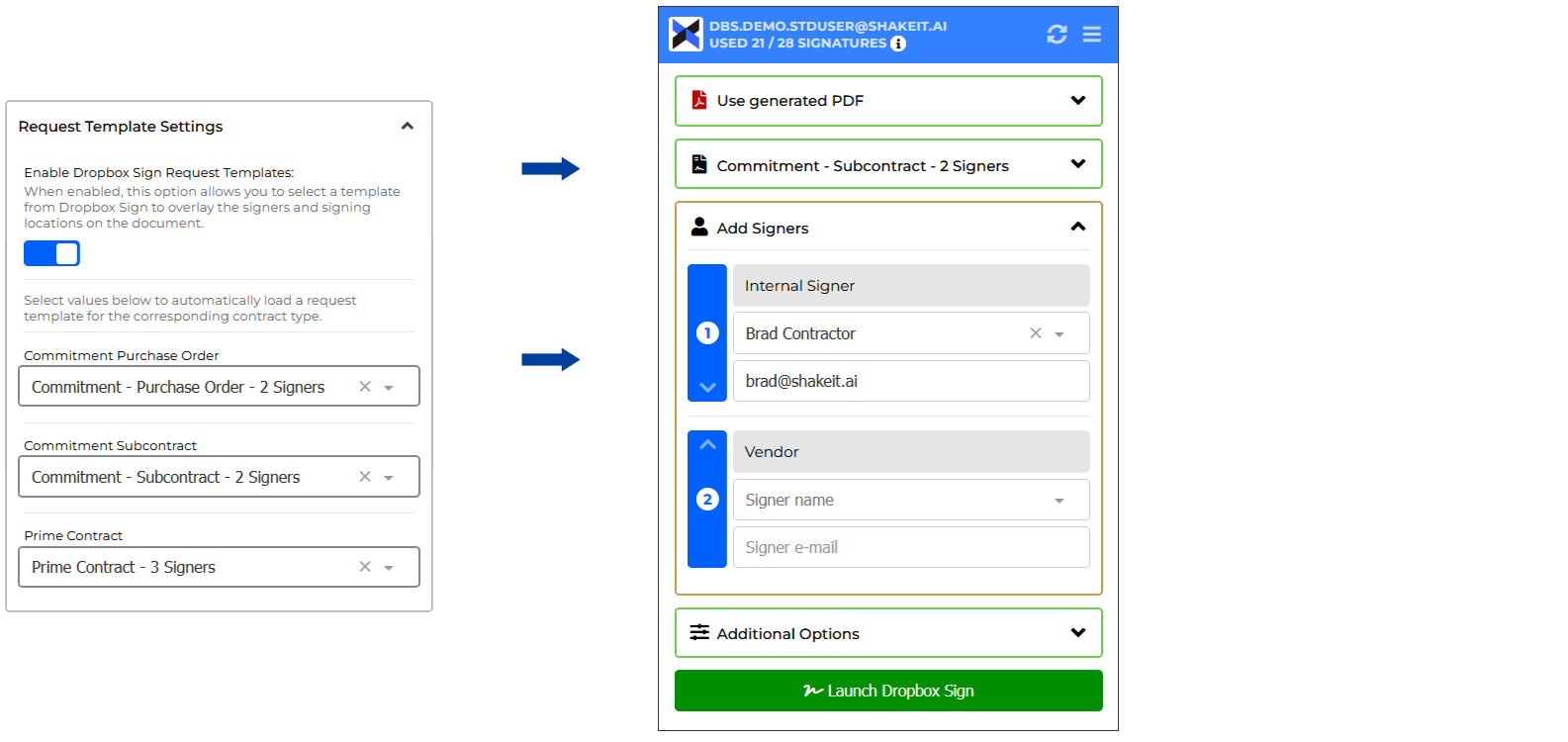
- After Launching Dropbox Sign, the signing locations are automatically placed based off the template
As of now, Request Templates Defaults are only available for Prime Contracts and Commitments. For tools such as Change Orders, you will need to manually select a template. Contact [email protected] to request this feature for a specific tool.